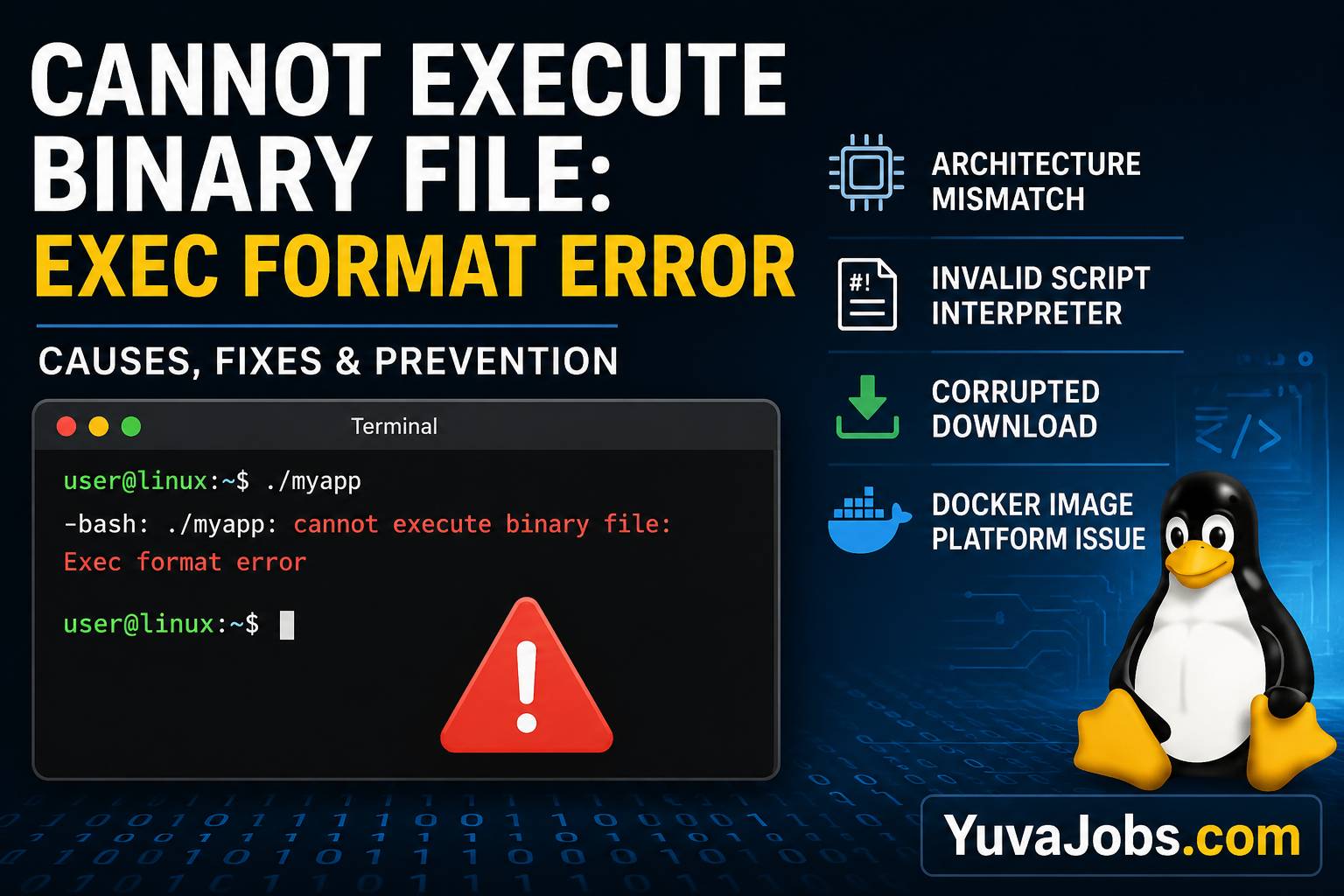
A single line in the terminal can stop an entire deployment, installation, or development session. The cannot execute binary file: exec format error message is one of those failures because it tells the operating system that the file you tried to run simply is not in a format your machine can execute. Unlike a missing permission or missing library error, this one happens before the program even starts.
The frustrating part is that the file often looks perfectly valid. It may have executable permissions, the correct filename, and even come from an official source. Yet Linux refuses to run it. The reason almost always comes down to architecture, file format, or execution context. Once you identify which of those is responsible, the fix is usually straightforward.
What causes this
Most people first assume the executable permissions are wrong. They run chmod +x filename, try again, and see exactly the same error. That happens because file permissions determine whether Linux may execute a file—not whether it actually understands the file format.
The most common cause is an architecture mismatch. For example, downloading an ARM64 binary onto an x86_64 server means the Linux kernel reads the executable header, notices that it was built for a completely different CPU architecture, and immediately returns Exec format error. The reverse is equally common when Raspberry Pi users accidentally download AMD64 software.
Another frequent cause appears when a shell script contains an invalid interpreter. Suppose the first line contains #!/bin/bash^M because the file was created on Windows using CRLF line endings. Linux interprets the hidden carriage return (^M) as part of the interpreter path, cannot locate the executable correctly, and may report an execution format problem depending on the environment. (The exact error message varies by distribution.)
And container environments introduce another variation. A Docker image built for linux/arm64 will not run on an amd64 host unless emulation such as QEMU has been configured correctly. The kernel is simply being asked to execute instructions intended for a different processor.
Corrupted downloads can also produce this error—especially when an HTML error page, compressed archive, or incomplete download is renamed as if it were an executable. Realistically, this happens more often than many users expect because download utilities sometimes save an error response without making it obvious.
Finally, binaries compiled for one operating system cannot normally execute on another. A Windows .exe file is not a Linux ELF executable, and a macOS Mach-O binary cannot run directly on Linux. The kernel recognizes the unsupported format and rejects it immediately.
How to fix it
Follow these steps in order. Each one confirms a different possible cause instead of guessing.
1. Identify the file type
Run:
file ./program
A healthy Linux executable typically reports something similar to:
ELF 64-bit LSB executable, x86-64
If the output says HTML document, ZIP archive, ASCII text, or anything unexpected, you downloaded the wrong file.
2. Check your system architecture
Run:
uname -m
Typical outputs include:
x86_64aarch64armv7li686
Compare this with the output from file.
If your machine reports:
x86_64
but the executable reports:
ARM aarch64
you need the x86_64 version instead.
And if you’re working inside Docker, also verify the container architecture:
uname -m
cat /etc/os-release
This avoids confusing the host architecture with the container architecture.
3. Verify executable permissions
Although permissions rarely cause this specific error, confirm them anyway:
ls -l program
If execute permissions are missing:
chmod +x program
Then try running it again.
4. Inspect shell scripts
If the file is actually a script:
head -1 script.sh
A valid first line looks like:
#!/bin/bash
or
#!/usr/bin/env bash
If you notice Windows line endings, convert them:
dos2unix script.sh
Or use:
sed -i 's/\r$//' script.sh
This removes carriage return characters that interfere with interpreter detection.
5. Verify the download
If you obtained the executable from a release page, compare checksums.
For SHA-256:
sha256sum program
Compare the result with the checksum published by the software maintainer. If they differ, delete the file and download it again.
6. Confirm the binary matches your operating system
Running:
file program
might display:
PE32 executable
That indicates a Windows executable.
Or:
Mach-O 64-bit executable
That indicates a macOS binary.
Linux cannot execute either directly. Download the Linux release instead.
7. Check Docker platform settings
For Docker, inspect the image architecture:
docker image inspect image_name
Or explicitly request the correct platform:
docker run --platform linux/amd64 image_name
or
docker run --platform linux/arm64 image_name
Choose the platform that matches both the image and the hardware unless you intentionally use emulation.
8. Use emulation only when necessary
Sometimes you genuinely need to run software compiled for another architecture. QEMU combined with Docker Buildx or Linux binfmt_misc can provide cross-platform execution.
But there is a trade-off—performance decreases, and not every application behaves identically under emulation. Production workloads should ideally use binaries compiled for the native processor.
If that didn’t work
If every previous step checks out, the problem may be less obvious.
One possibility is filesystem corruption or an interrupted file transfer. Recopy the executable from its original source instead of repeatedly changing permissions or ownership. Here’s the thing: if the executable header itself is damaged, Linux has no reliable way to interpret it.
Another possibility involves network-mounted filesystems or unusual storage configurations. Some mounts use options such as noexec, preventing programs from running directly. Although noexec often produces a “Permission denied” message instead, different execution paths and wrapper scripts can create confusing symptoms. Verify the mount options with:
mount | grep noexec
If appropriate, remount the filesystem or move the executable into a local directory like /usr/local/bin or your home directory.
And older Linux distributions occasionally struggle with binaries compiled against newer kernel features or toolchains. That does not always produce an Exec format error, but compatibility issues can resemble it during troubleshooting. Check the software’s release notes to confirm the minimum supported operating system version before assuming the binary itself is broken.
How to prevent it
A few habits eliminate most occurrences of this error before they happen.
Always verify your system architecture using uname -m before downloading software manually. When projects publish multiple releases, pay close attention to names like amd64, x86_64, arm64, aarch64, or armhf.
Keep scripts in Unix line-ending format, especially when editing files across Windows and Linux systems. Many developers configure editors to save new shell scripts using LF line endings automatically.
Download binaries only from trusted release pages, verify published SHA-256 hashes whenever available, and avoid renaming archives or compressed files into executable names. The truth is that many “mystery” execution errors end up being incomplete downloads rather than operating system problems.
Closing
The cannot execute binary file: exec format error message is rarely random. Nearly every case traces back to a binary built for the wrong architecture, an unsupported executable format, a damaged download, or an interpreter problem in a script. Start by checking the output of file and uname -m, because those two commands solve a large percentage of real-world cases within minutes. If they don’t reveal the issue, work through the remaining checks methodically instead of changing multiple settings at once. That approach saves time and avoids introducing new problems while chasing the original one.
